 EN
EN 

AI Summary
- Archive lets users archive outdated articles and categories without deleting them. Archived items are excluded from portal and site search, Eddy AI responses, and related article recommendations, while revision history, tags, and SEO settings remain intact. Items can be filtered, restored, and managed through content areas and the API.
- Advanced Eddy AI Analytics tracks answered and unanswered queries, identifying content gaps, out-of-scope questions, and query interpretation issues.
- Private links support expiry dates, filtering, bulk stop sharing, separate sharing permissions, and clearer confirmation wording. Eddy AI chatbot tickets can be routed by email with configurable recipients, subject prefixes, and escalation triggers.
- New MCP tools provide full-text search and article listing with literal matches, optional regex, category or knowledge base scope, and structured article details.
- Other improvements include open feedback after replies, safe Drive file renaming, image replacement in AI Capture, clearer access inheritance, monthly page-based PDF credits, sleek article headers with focus mode, and various portal, login, upload, and performance enhancements.
AI-generated content. It may contain errors.
See Document360 in action
A knowledge base is only as good as the answers it can give. Most teams find out where it falls short the hard way: a reader gives up, opens a support ticket, or leaves feedback saying they couldn’t find what they needed. By then the gap has already cost you a customer’s time.
Old content doesn’t stay quietly in the background. It shows up in search, confuses readers, and finds its way into AI-generated answers. But deleting it means losing revision history, tags, and SEO settings you may need later. The new archive knowledge base articles solve both problems.
Archive: Keep Your Knowledge Base Clean Without Deleting Anything
Every knowledge base collects content that has outlived its purpose: retired features, old processes, articles nobody should find anymore. Deleting them feels risky, and hiding them leaves clutter behind the scenes.
The new Archive option gives you a third choice. You can archive outdated or no-longer-needed articles and categories instead of deleting or hiding them. Archived items are removed from the knowledge base and excluded from:
- Portal and site search
- Eddy AI responses
- Related article recommendations
Nothing is lost in the process. An archived item’s revision history, tags, and SEO settings remain intact, so you can bring it back whenever you need it.
The new Archive page makes it easy to find, filter, and restore archived items, and restoring preserves their previous status. Archive and unarchive actions are also available across key content management areas and through the API. Keeping outdated content out of search and AI answers is a practical step for any knowledge management software workflow. For setup details, read Archive articles.

Check out this video on how to archive outdated documentation content without deleting it
Beyond Archive: Other Knowledge Base Improvements
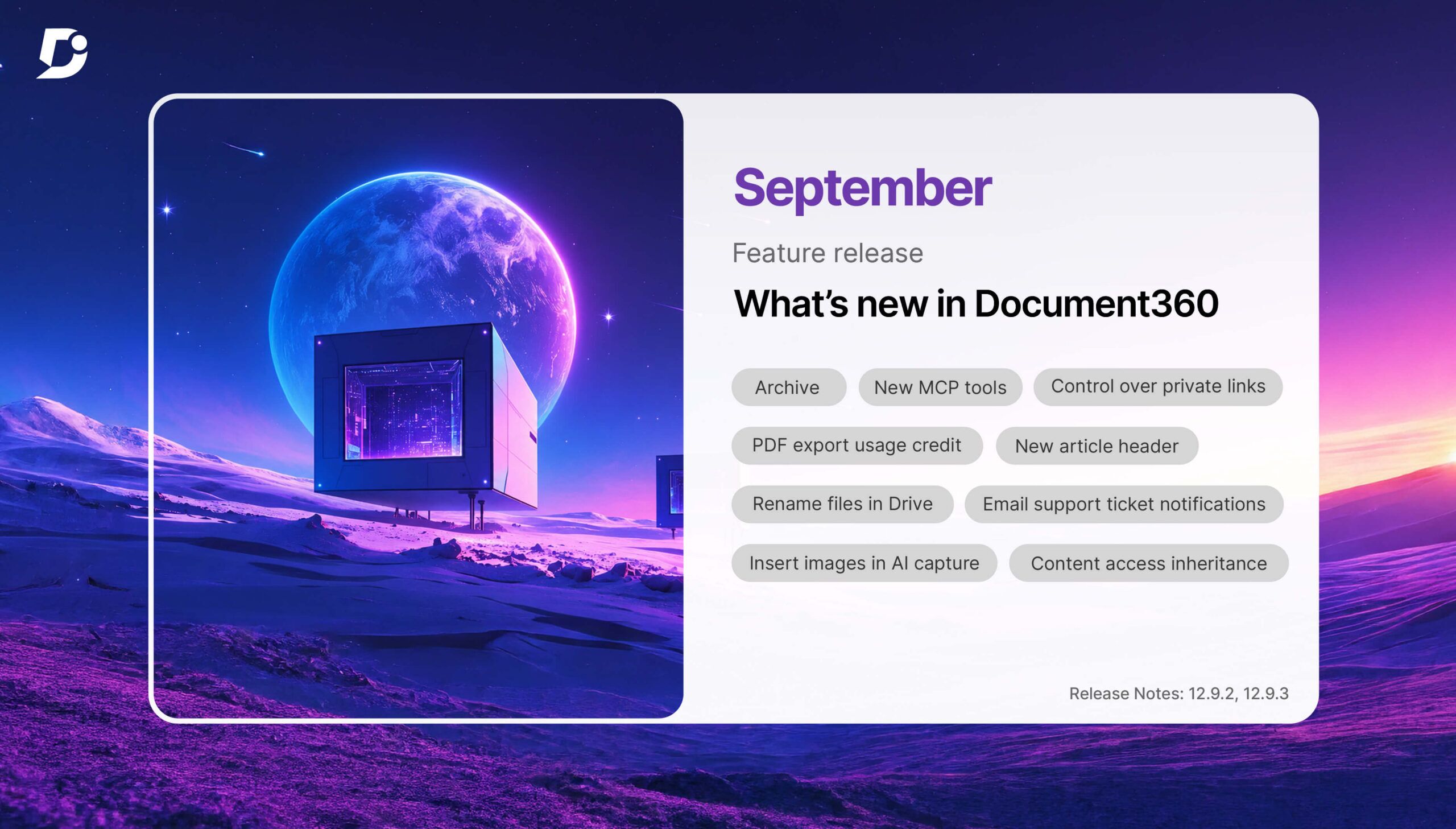
Here’s what’s new in Document360 knowledge base software this September. Advanced Eddy AI Analytics shows which reader queries go unanswered and why, and the Eddy AI chatbot can now route support tickets by email when a question can’t be resolved. Alongside them: private links with expiry dates, new MCP tools for exact-match search, a monthly credit model for PDF export, a sleek article header with focus mode, Feedback manager actions that no longer close a conversation just because you replied, file renaming in Drive that doesn’t break references, image replacement in Document360 AI capture, and clearer content access inheritance. Let’s jump in!
Advanced Eddy AI Analytics: Find Out What Your AI Can’t Answer
Adding AI search to a knowledge base is the easy part. The harder question is what happens when a reader asks something and gets nothing useful back. Without visibility, those misses go unnoticed until they turn into tickets.
The new Advanced Eddy AI Analytics page gives you that visibility. You can track how many reader queries Eddy AI answers, how many it leaves unanswered, and how both numbers change over time. It’s a practical way to measure how well your AI-powered knowledge base is serving readers.
The real value is in the unanswered queries. For each one, you also see why Eddy AI couldn’t respond:
- A content gap: your documentation doesn’t cover the topic yet
- Out of scope: the question falls outside what your documentation is meant to answer
- A query interpretation issue: Eddy AI couldn’t work out what the reader was asking
Each reason points to a different fix. A content gap means a new article. An out-of-scope question might mean adjusting reader expectations. An interpretation issue is a signal to review how your content is worded. Unanswered queries become a ready-made content backlog, and a practical example of AI in knowledge management in action, driven by what readers actually ask.
To get started, click Try new Eddy AI analytics on the Eddy AI – Assistive Search analytics page.
More Control Over Private Links
Private links make it easy to share drafts for review. The trouble is that without expiry controls and visibility into which links are active, shared internal documentation can stay accessible long after the review is over.
You can now set an expiry date for private links so drafts don’t remain accessible indefinitely. Links still default to Never expires, and you can change the expiry setting anytime without changing the URL.
Managing shared links is easier too:
- Shared link filter: a new filter in All articles shows all content with active links, their expiry status, and a one-click Copy link option
- Bulk stop sharing: stop sharing multiple links at once
- Share link permission: let users share content externally without giving them access to edit article settings
- Clearer wording: Delete link is now called Stop sharing, and you’re asked to confirm before the link is revoked
Together, these changes make it simpler to share drafts with reviewers while keeping control of what stays accessible. Read more in Share articles via private link.

Email Ticket Notifications From the Eddy AI Chatbot
A strong self service knowledge base answers most questions on its own. For the ones it can’t, readers need an easy way to reach a person, and your team needs those requests to land where they already work.
Until now, tickets raised through the Eddy AI chatbot went straight to connected ticketing platforms. You can now choose email as the destination for ticket notifications, which gives project admins more flexibility in how support requests are routed. Admins can:
- Set the To and CC recipients for notification emails
- Add a subject prefix so tickets are easy to spot and filter
- Configure the Raise a ticket? option to appear automatically after a set number of reader conversations or queries
The chatbot is also better at spotting when a reader needs help. It recognizes support-related requests in context, such as “raise a ticket” or “talk to an agent,” and surfaces the Raise a ticket? option with a more visible UI, right next to the existing feedback option.
For teams working to reduce support tickets, this keeps the handoff simple: readers try self-service first, and when it falls short, the ticket reaches the inbox you’ve chosen. Learn more in the Ticket escalation documentation.
New MCP Tools to Find Exact Content Faster
Finding exact content across a large knowledge base can be slow, especially when you’re searching for a specific term, code snippet, variable, snippet, or glossary term.
Document360 MCP now supports two new tools:
- Full-text search (
document360-mcp-find-text) - Article listing (
document360-mcp-list-documents)
These tools let you find literal matches across categories and versions, with optional regex support. You can scope results to a specific category or your entire knowledge base, and retrieve article details in a structured format. For teams maintaining large libraries with software documentation tools, that means less manual searching when a product term or code sample changes. See Supported MCP tools for details.
Schedule a demo with one of our experts to take a deeper dive into Document360
Book a Demo
Feedback Manager: Reply to Readers Without Closing the Loop Early
Reader feedback is one of the most useful signals a customer service knowledge base produces. But until now, responding to a reader also closed the feedback, even when the conversation needed to continue. Teams had to choose between talking to the reader and keeping the issue visible.
Feedback manager now separates communication from feedback status. You can reply to a reader while keeping the feedback open for further action, and close it only when the issue is truly resolved. That keeps your open items honest, which is one of the simplest knowledge base best practices to follow.
A few related improvements make closing feedback smoother:
- When you close multiple feedback items from the Feedback manager page, the Close option is now more prominent
- You can notify readers when you close feedback items in bulk
- If a reader withdraws feedback you’ve already actioned, the withdrawal is recorded in that feedback
See the Feedback management documentation for details.

Rename Files in Drive Without Breaking a Single Reference
Files rarely arrive with good names. They’re uploaded from different places, reused across a project, and often need to follow a naming convention that the original filename ignores. A common worry when renaming files in documentation software is that every article using the file might break.
In Document360, you can now rename files in Drive without affecting where they’re used. You can rename a file:
- From the file’s context menu
- From the selection toolbar
- While uploading, including uploads from the Editor’s Insert panel
For images, Eddy AI can generate a descriptive name based on the naming configuration you’ve set in your project settings, which saves the manual work of renaming screenshots one by one.
Renaming changes only the file name. Articles, content reuse blocks, and decision trees that use the file continue to work, so existing file references stay intact. That makes it safe to clean up a growing Drive, which matters as your product documentation software library scales. Read more in Rename a file.

Insert Images in Document360 AI Capture From Drive
Product screens change, and the guides that show them need to keep up. For teams that create online documentation with step-by-step guides, recorded videos, and interactive demos, redoing a whole capture just to swap one visual is a poor use of time.
You can now insert or replace images in Document360 AI capture directly from Drive:
- Step slides: insert or replace images as step slides in step-by-step guides
- Overlay images: insert or replace overlay images in guides, recorded videos, and interactive demos
Before an image goes in, Document360 validates its resolution, size, and type for the selected AI capture element, so what you add will display as expected.
It’s a small change with a clear payoff for anyone maintaining technical documentation software walkthroughs and user documentation: updating visuals no longer means starting the capture over. See Advanced elements: Images for the full steps.
Clearer Content Access Inheritance
When you run an internal knowledge base or serve several audiences from one project, access control has to be easy to read. Assigning content access to users, readers, and groups wasn’t always straightforward: it wasn’t obvious which categories inherited access and which had inheritance blocked.
Category selection now clearly shows the inheritance status of each item, so you can see at a glance what’s included. When you need more precision, you can explicitly select categories or subcategories that carry the blocked inheritance badge to grant access based on your specific requirements.
The result is fewer surprises about who can see what, which is a core requirement for any knowledge base platform that handles private or role-specific content. Learn more about content access levels.

PDF Export Now Runs on a Monthly Usage Credit Allowance
PDF export is a staple for manuals, offline guides, and anything readers want to keep. User manual software often depends on PDF export, and until now that capacity was governed by a daily file-size limit in MB.
PDF export now runs on a monthly usage credit allowance, measured by exported pages instead. One credit represents one exported page.
On the Export articles page, a live usage widget shows how much of the monthly allowance you’ve used and how much remains, with visual indicators as you approach the limit.
Owners also get more control:
- Request additional usage directly from the Export articles page
- Choose what readers see once the limit is reached: hide the export option entirely, or keep it visible with an explanatory message on the Knowledge base site
For the full details, read Export articles as PDF.

A New Article Header With Sleek Layout, Flexible Feedback, and Focus Mode
Readers come to your online knowledge base for answers, so the page should get out of their way. The new sleek layout and compact article header give more space to content for a cleaner, more focused reading experience. New projects use the sleek header by default, and it will soon be available as a new header theme for existing projects.
You also get more say in how readers interact with the page:
- Article feedback form placement: show it in the header, at the bottom of the article, or not at all
- Focus mode: hides navigation and other page elements for distraction-free reading across articles, page categories, and API documentation
The sleek layout also adds a more streamlined toolbar, independently collapsible navigation and side panels, and an updated Article info popover with key article details. Learn more in Article settings.

Other Improvements
This release also includes a broad set of smaller enhancements across the portal and knowledge base site:
- Redesigned status icons. Article and page category status indicators have been redesigned for better visibility. When a published article or page category has an active draft, a yellow dot now appears in the top-right corner of the status icon. See Article status.
- Redesigned filters. All filters across the portal have a cleaner, more compact layout and streamlined controls for an improved filtering experience.
- Category filter selection. On the All articles page, the category filter now lets you select an entire category, including all of its subcategories, with a single click.
- Large file uploads add-on. Files larger than the standard 150 MB limit are now supported through the new Large file uploads add-on, with usage tracked against a separate storage allocation.
- Google Workspace and Microsoft sign-up. You can now sign up for and log in to Document360 with a Google Workspace or Microsoft account for faster account creation.
- Data center selection at login. The login page now lets you choose the project environment you need: EU, US, or CA.
- Refreshed global search bar. The global search bar in the Knowledge base portal has a new look, with filters displayed as selectable chips for easier search refinement.
- UI refinements. The More article options dialog in the editor, the View logs dialog on the API references page, the IP restriction page, and the Manage sources page under AI settings all have minor UI improvements.
- Platform improvements. Minor security updates, bug fixes, and performance improvements across the Knowledge base portal and Knowledge base site.
Wrapping Up
Most of this release is about closing gaps you’d otherwise find out about too late: the outdated article still showing in search, the question your AI couldn’t answer, the ticket that had nowhere to go, the feedback closed before the conversation ended, the file you were afraid to rename.


